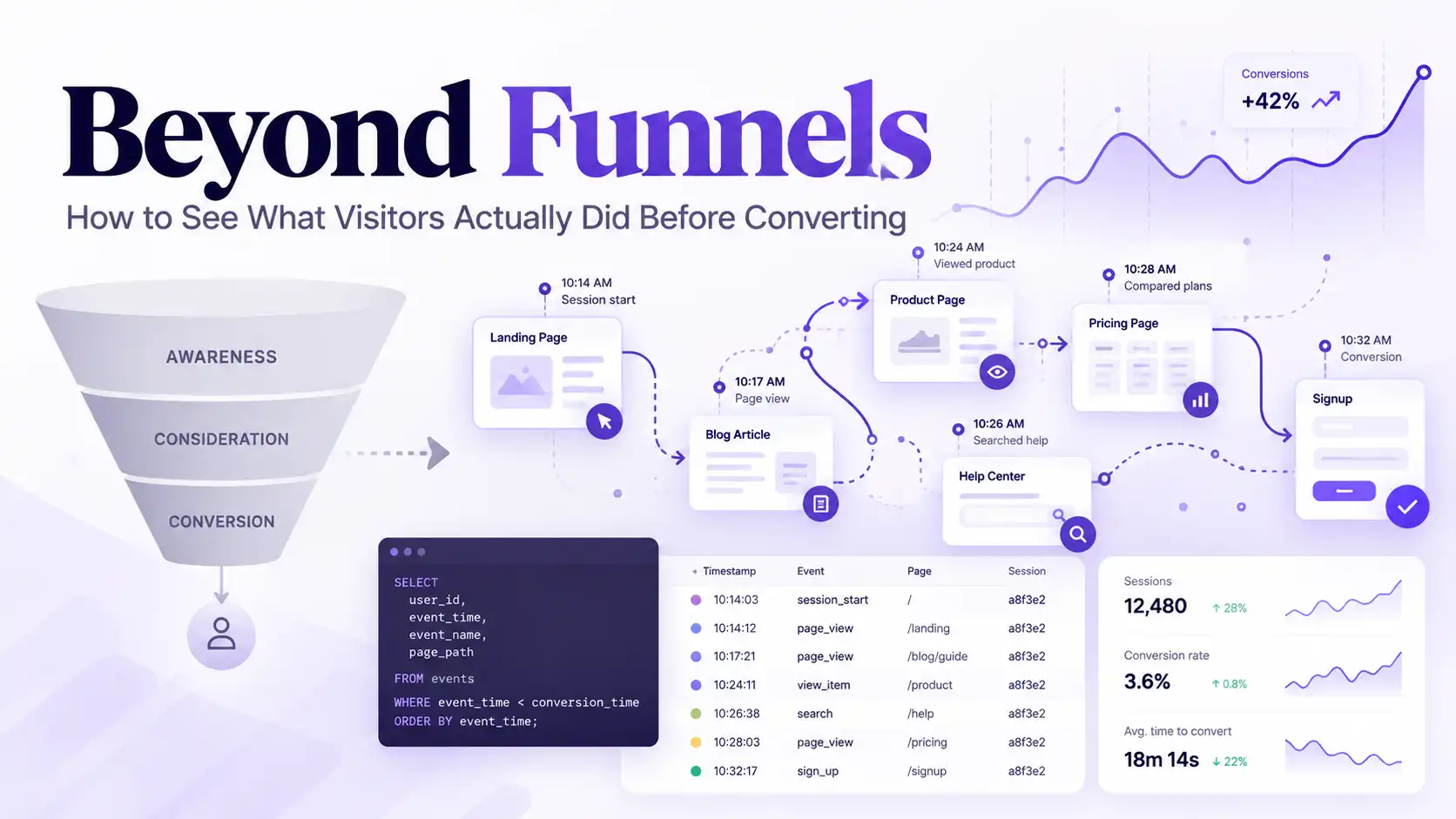
Marketers love a good journey. Customer journeys, re-engagement, onboarding, and purchase journeys! We love it all!
Unfortunately, most of these journeys are nothing more than buzzwords unless they’re put into action.
I mean, we get bits and pieces. We know people land on this webpage and convert. We know that they came from this traffic channel. We know that they can be reached through this ad platform, but very few people put those pieces together.
Mainly because it’s hard to put the pieces together. No single obvious thread connects all these disparate events. At least it’s not obvious unless someone tells you about user_pseudo_id.
More specifically, the GA4 event export includes a field called user_pseudo_id. This field provides a pseudonymous identifier that can connect events associated with the same browser over time. It isn’t 100% accurate because the same person may appear under multiple IDs if they switch devices, browsers, or otherwise generate a new identifier. The data may be imperfect, but it does help us solve our problem.
This is the first piece of the puzzle in unraveling the user journey on our site, so let’s start with how we get this information exactly.
While Google Analytics creates this ID value for every new user, it doesn’t actually provide an easy way to analyze the data from these users.
As far as I’m aware, there isn’t a native way to segment the users in any meaningful way.
GA4 does provide audiences, explorations and user segments, but those interfaces are not designed to give us complete freedom to reconstruct and manipulate a visitor’s raw event history however we want.
That’s where BigQuery comes in..

With BigQuery, we can pull the raw data and shape or transform it however we see fit.
Instead of relying on a predefined funnel, we can organize the events chronologically and see the journey that actually occurred.
In this case, we’re going to take that variable called user_pseudo_id and build a completely custom dataset!
Step 1: Connecting GA4 to BigQuery
Now we need to connect our GA4 to BigQuery if you haven’t already.
First, I’m going to assume you have a BigQuery and GA4 account already set up. If not, you will need to create these, and within BigQuery, create a new project.
The project I used as an example had an ID titled tough-racer-123456-s1. You’ll need this to connect the accounts.
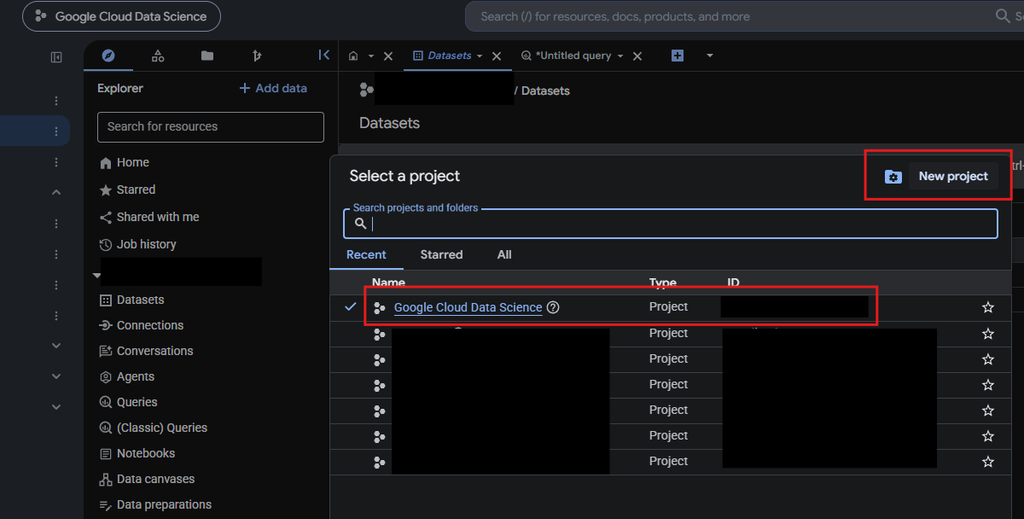
Once you’ve created the project, go to your Google Analytics account. Follow the path below, and you should find an option to link your Google Cloud Project to your Analytics account.
GA4 → Admin → Product links → BigQuery Links
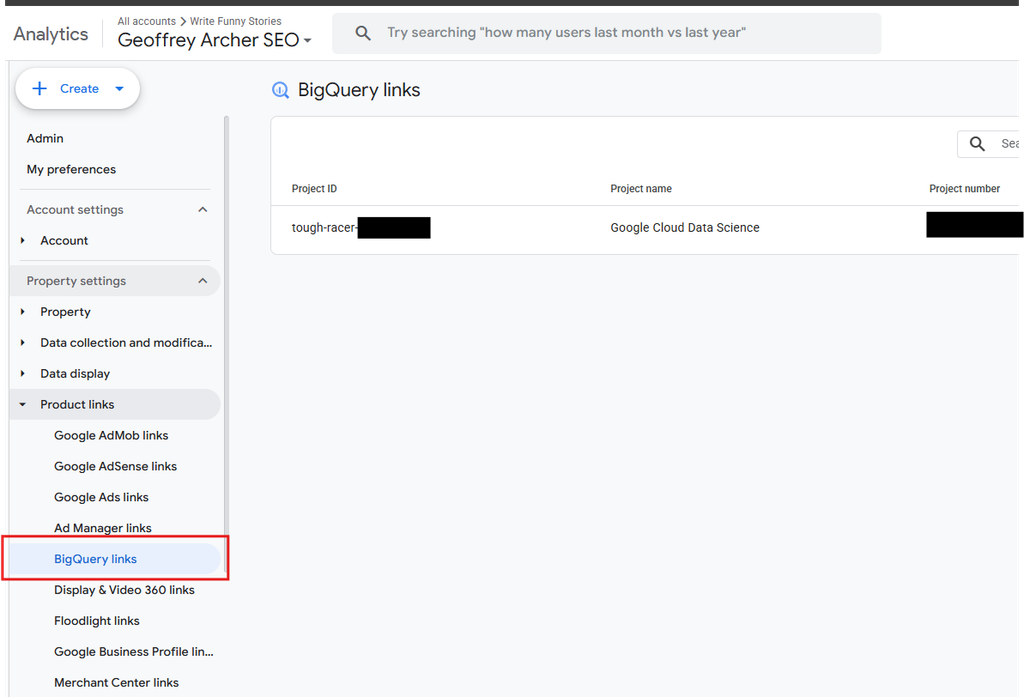
You should see an option to link the account.
Important note:
BigQuery exports are not retroactive, so start the connection as early as possible.
You can’t expect BigQuery to suddenly contain all the historical event data that existed before you established the connection. Unfortunately, you will have to wait for some data to populate before you can start the analysis.
When the tables start to appear, though, you will eventually see something like this:
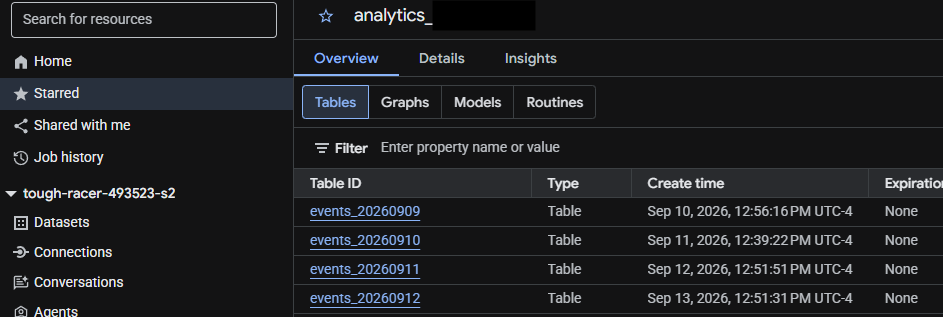
Each daily table contains the raw event records collected for that date. Instead of looking at those tables separately, we can query them together and organize the records by visitor and time.
Step 2: Using SQL to Pull Raw User Data
This is the point where the analysis becomes much more powerful. Rather than looking at aggregate numbers such as total sessions, users, or conversions, we’ll arrange individual events in the order they happened.
Now, if you don’t already know, BigQuery allows you to use SQL and Python. Both coding languages are immensely helpful, but in this case we’ll use SQL. Why?
BigQuery’s native query language is SQL, while Python can also be extremely useful later for deeper analysis, modeling, and visualization.
Because SQL is built for working with structured data. It lets us quickly filter millions of rows, group users and events, connect related data points, and reconstruct patterns in how people move through a website.
That’s exactly what we need here. We aren’t trying to predict anything yet. We simply want to take a massive event table and organize it into something that resembles a chronological visitor history.
So I’ve included a sample query below. Be sure to replace the value under the FROM command with the actual name of your project and the value of your property ID.
SELECT

  user_pseudo_id,

  TIMESTAMP_MICROS(event_timestamp) AS event_time,

  event_name,

  (

    SELECT value.int_value

    FROM UNNEST(event_params)

    WHERE key = 'ga_session_id'

  ) AS session_id,

  (

    SELECT value.string_value

    FROM UNNEST(event_params)

    WHERE key = 'page_location'

  ) AS page_location

FROM

  `project.analytics_PROPERTY_ID.events_*`

ORDER BY

  user_pseudo_id,

  event_time
A few important things are happening here.
First, we’re pulling user_pseudo_id, which lets us associate events with the same pseudonymous visitor. Next, we’re converting Google’s event timestamp into a readable timestamp. Then we’re extracting the session ID and page location from GA4’s nested event parameters.
Finally, we’re ordering everything first by user_pseudo_id and then by event time.
That last step starts turning a collection of events into a journey.
Step 3: Reconstructing the Visitor Timeline
Once you’ve run the query, you should see an output that looks something like this:
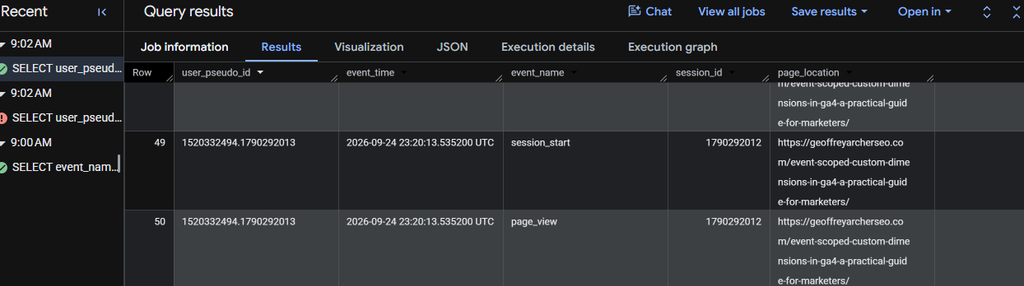
At this stage, we haven’t created a finished model of the user journey. What we’ve created is a raw chronological foundation that will let us investigate user journeys.
Export the data and start playing around with it.
For smaller datasets, exporting the results into a spreadsheet or Python can make exploration easy. For larger datasets, you can also continue transforming and summarizing everything directly inside BigQuery.
You should start to discover some interesting insights.
The real advantage is that we are no longer restricted to asking questions that fit neatly inside a predefined GA4 report.
You can group events into sessions, count how many sessions occurred before a conversion, identify the first recorded landing page for a visitor, and look at the page that immediately preceded the conversion.
You should be able to organize by date in descending order and filter out specific IDs. This will give you a timeline of one person’s history on the site.
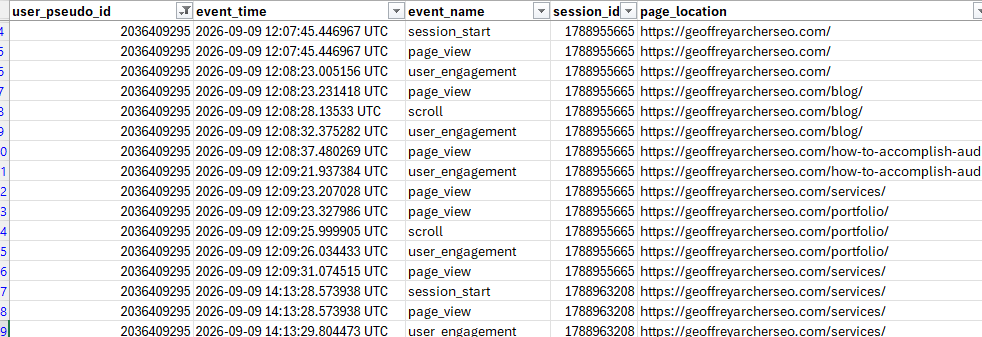
Based on this data, you can reconstruct real user journeys. In this example, I’m already seeing a trend.
Session 1
Direct
- 12:02 Landed on the homepage
- 12:04 Viewed /article
- 12:06 Viewed /portfolio
Session 2
- 14:34 Viewed /services
- 14:38 Triggered form submission
Step 4: Observing Funnels Beyond Our Preconceived Ideas
And this is where the idea of going “beyond funnels” becomes important.
Traditional funnels are extremely useful when we already know the sequence we expect users to follow.
But real people do not always follow the journeys we design.
One person might discover a website through organic search, read an educational article, disappear for several days, return directly, visit another article, and finally subscribe to an email list.
Another person might visit five different pieces of content in one session and convert immediately.
If we only analyze a predefined funnel, those journeys can be difficult to see.
By reconstructing event histories around user_pseudo_id, sessions and timestamps, we can begin identifying patterns based on what visitors actually did rather than what we assumed they would do.
And that opens the door to much more interesting questions.
- Which pages consistently introduce eventual converters?
- Which pages tend to appear in the middle of longer journeys?
- Which pieces of content repeatedly appear immediately before conversion?
- How many times do our most engaged visitors return?
- What content appears disproportionately often in successful journeys?
At that point, we’re studying behavior.
And that may ultimately be the more useful question: not just which channel received attribution, but what actually happened before someone decided to convert.