This guide explains how to set up internal traffic labeling and exclusion in Google Tag Manager (GTM) and GA4 for any website you manage.
This setup uses:
- a special internal URL parameter
- a first-party cookie
- a lookup table variable in GTM
- a GA4 configuration parameter
- the built-in GA4 internal traffic filter
What this setup does
When someone visits a website with a special URL parameter, GTM stores a cookie in their browser. On future visits, GTM reads that cookie and sends traffic_type = internal to GA4. GA4 can then classify that traffic as internal and exclude it from reports.
Example flow
- A team member visits:
https://www.example.com/?internal=true - GTM detects ?internal=true
- GTM sets a first-party cookie named internal_user with the value true
- GTM reads that cookie on future pageviews
- GTM sends traffic_type = internal to GA4
- GA4 classifies the traffic as internal
- Once the filter is set to Active, GA4 excludes that traffic from future reporting
Important notes before you begin
- This setup must be implemented separately in each GTM container / each site.
- Team members must visit the internal link once per browser and device.
- If someone clears cookies or changes browsers, they must visit the internal link again.
- GA4 filters do not remove past data. They only affect future data.
- Once the GA4 internal traffic filter is set to Active, excluded data is not available in reporting.
- DebugView may still show internal events even after the filter is active.
Part 1: Build the GTM setup
Overview of what you will create in GTM
You will create:
Variables
- URL query variable to detect ?internal=true
- First-party cookie variable to read the internal cookie
- Lookup table variable to translate the cookie value into internal
Trigger
- Page View trigger that fires only when ?internal=true is present
Tag
- Custom HTML tag that sets the internal cookie
Existing GA4 / Google Tag update
- Update the main Google Tag so it sends traffic_type
Step 1: Create the URL variable
This variable checks whether the URL contains ?internal=true.
In GTM
Go to:
Variables → New
Configure the variable
- Variable Name: Internal URL
- Variable Type: URL
- Component Type: Query
- Query Key: internal
What this does
If the page URL is:
https://www.example.com/?internal=true
Then this variable returns:
true
Example screenshot placeholder

Step 2: Create the Page View trigger
This trigger fires only when the Internal URL variable equals true.
In GTM
Go to:
Triggers → New
Configure the trigger
- Trigger Name: Pageview Internal Query True
- Trigger Type: Page View
- This trigger fires on: Some Page Views
- Condition: {{Internal URL}} equals true
What this does
This ensures the cookie-setting tag only fires when someone lands on a page that contains ?internal=true.
Example screenshot placeholder

Step 3: Create the Custom HTML tag that sets the cookie
This tag writes a cookie to the browser when the internal URL is used.
In GTM
Go to:
Tags → New
Configure the tag
- Tag Name: HTML Set Internal User Cookie
- Tag Type: Custom HTML
Paste this code
<script>
(function() {
var expires = new Date();
expires.setFullYear(expires.getFullYear() + 1);
document.cookie =
“internal_user=true” +
“; expires=” + expires.toUTCString() +
“; path=/” +
“; SameSite=Lax”;
})();
</script>
Triggering
Attach this trigger:
- Pageview Internal Query True
What this does
When someone lands on a page with ?internal=true, GTM sets a cookie:
- Cookie name: internal_user
- Cookie value: true
The cookie lasts for one year unless the user clears cookies.
Example screenshot placeholder

Step 4: Create the first-party cookie variable
This variable reads the cookie that was set in Step 3.
In GTM
Go to:
Variables → New
Configure the variable
- Variable Name: GTM Cookie Internal User
- Variable Type: 1st Party Cookie
- Cookie Name: internal_user
What this does
If the cookie exists, this variable returns:
true
Important note
The cookie name must exactly match the cookie set in the Custom HTML tag:
- Tag writes: internal_user
- Variable reads: internal_user
Example screenshot placeholder
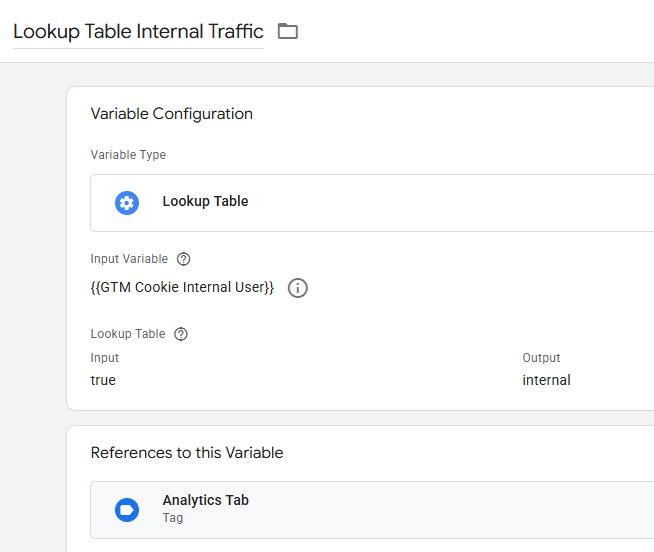
Step 5: Create the lookup table variable
Do not use Custom JavaScript for this step. Use a Lookup Table. It is simpler and more reliable.
This variable translates the cookie value into the exact value GA4 expects.
In GTM
Go to:
Variables → New
Configure the variable
- Variable Name: Internal Traffic Type
- Variable Type: Lookup Table
- Input Variable: {{GTM Cookie Internal User}}
Lookup Table row
- Input: true
- Output: internal
Default value
Leave blank.
What this does
If {{GTM Cookie Internal User}} = true, then:
{{Internal Traffic Type}} = internal
If the cookie does not exist, the variable returns blank.
Example screenshot placeholder
Step 6: Update the main Google Tag
This is the most important GTM update. Your main Google Tag must send the traffic_type parameter.
How to identify the correct tag
This is usually the base GA4 tag / Google Tag that fires on all pages.
Common signs:
- Tag type is Google Tag
- It uses a GA4 measurement ID like G-XXXXXXXXXX
- It fires on Initialization – All Pages or All Pages
In GTM
Open the main Google Tag.
In Configuration Settings
Add a parameter row with:
- Configuration Parameter: traffic_type
- Value: {{Internal Traffic Type}}
Important details
- Type traffic_type manually in the left field.
- Do not choose it from the variable list.
- It is a parameter name, not a variable.
- The value should be the lookup table variable.
Final setup should look like this
- traffic_type → {{Internal Traffic Type}}
What this does
If the cookie exists, GTM sends:
traffic_type = internal
to GA4 with events.
Example screenshot placeholder

Part 2: Test the GTM setup
Step 7: Preview the container
In GTM, click Preview.
Open the site and use the internal URL:
https://www.example.com/?internal=true
What to confirm in GTM Preview
A. Confirm the cookie-setting tag fired
Look for:
- HTML Set Internal User Cookie
- Status should be: Fired
B. Confirm the variables return the correct values
Open the Variables tab and confirm:
- Internal URL = true
- GTM Cookie Internal User = true
- Internal Traffic Type = internal
If all three are correct, the GTM side is working.
Part 3: Verify the parameter in GA4
Step 8: Open GA4 DebugView
Go to:
GA4 → Admin → DebugView
With GTM Preview still active, generate a pageview or another event.
What to look for
Click a page_view event or another site event and review the event parameters.
You should see:
- traffic_type
- value: internal
What this confirms
This confirms GA4 is receiving the parameter.
Part 4: Register the custom dimension in GA4
Step 9: Create a custom dimension for traffic_type
This makes traffic_type available in reporting interfaces where supported.
In GA4
Go to:
Admin → Custom definitions → Create custom dimension
Configure the custom dimension
- Dimension name: Traffic Type
- Scope: Event
- Event parameter: traffic_type
Save.
Important note
This may take several minutes to become available in reporting.
Part 5: Configure the GA4 internal traffic filter
Step 10: Open the internal traffic filter
In GA4, go to:
Admin → Data settings → Data filters
Open the built-in Internal Traffic filter.
Configure the filter
You should use:
- Filter type: Internal traffic
- Filter operation: Exclude
- Parameter name: traffic_type
- Parameter value: internal
Step 11: Set the filter state to Testing first
Choose:
- Testing
Do not set it to Active immediately.
What Testing does
Testing mode allows GA4 to identify matching traffic without excluding it yet.
Part 6: Confirm GA4 is classifying the traffic
Step 12: Wait for data processing
After implementing the filter and custom dimension, wait a bit for reporting to catch up. DebugView is immediate, but standard reports can take longer.
How to confirm classification
Use one of these methods.
Preferred method
Go to a standard report and check whether internal traffic is being labeled.
Possible places include:
- Reports → Engagement → Events
- Add a secondary dimension where available
- Use the test filter name / traffic type fields if supported
Important note
Realtime comparisons may not support this dimension. If GA4 says:
Realtime data is not supported for this comparison
that does not mean the setup failed.
If DebugView shows traffic_type = internal, the parameter is being received.
Part 7: Activate exclusion
Step 13: Change the GA4 filter from Testing to Active
Once you are confident the classification is correct, go back to:
Admin → Data settings → Data filters
Open Internal Traffic and change the filter state from:
- Testing
to:
- Active
What Active does
GA4 will exclude future events where:
- traffic_type = internal
from reporting.
Important warning
This only affects future data.
It does not remove past data.
Once active, excluded internal traffic is not available in standard reporting.
Standard naming conventions to use on every site
To keep containers consistent, use the same names everywhere.
Variables
- Internal URL
- GTM Cookie Internal User
- Internal Traffic Type
Trigger
- Pageview Internal Query True
Tag
- HTML Set Internal User Cookie
Using the same names across all sites will make maintenance easier.
Full implementation checklist
GTM
- Create URL variable: Internal URL
- Create trigger: Pageview Internal Query True
- Create Custom HTML tag: HTML Set Internal User Cookie
- Create 1st Party Cookie variable: GTM Cookie Internal User
- Create Lookup Table variable: Internal Traffic Type
- Update main Google Tag with traffic_type → {{Internal Traffic Type}}
- Test in GTM Preview
GA4
- Confirm traffic_type = internal in DebugView
- Create custom dimension: Traffic Type
- Set Internal Traffic filter to Testing
- Confirm classification in reporting after processing
- Change filter to Active
Troubleshooting guide
Problem: The cookie tag does not fire
Check:
- Does the URL contain ?internal=true?
- Does {{Internal URL}} return true?
- Does the trigger use Page View and Some Page Views?
- Is the condition {{Internal URL}} equals true?
Problem: The cookie exists, but GA4 is not receiving traffic_type
Check:
- Does {{GTM Cookie Internal User}} return true?
- Does {{Internal Traffic Type}} return internal?
- Did you update the main Google Tag with:
- traffic_type → {{Internal Traffic Type}}
Problem: traffic_type does not appear in the GA4 report builder
Check:
- Did you create the custom dimension in GA4?
- Has enough time passed for it to process?
Problem: Realtime report says the comparison is not supported
Important
This does not mean the implementation failed. Some dimensions are not supported in Realtime comparisons.
Use DebugView and standard reports for validation.
Problem: A team member is still being counted
Check:
- Did they visit the internal link on that browser?
- Did they clear cookies?
- Are they using a different browser or device?
Internal link instructions for team members
Use this format for each site:
Team members should:
- Open the site using the internal link once
- Continue using the site normally after that
- Repeat if they clear cookies or switch browsers/devices
Recommended optional additions
These are not required for the basic setup, but they can improve reliability.
Option 1: Automatically classify GTM Preview / Tag Assistant users as internal
This helps prevent developers from accidentally appearing in live data.
Option 2: Maintain internal instructions in a central QA document
Keep a shared list of:
- internal links by site
- GTM container names
- GA4 property names
- implementation date
- filter activation date
Option 3: Standardize QA after deployment
For every new site launch or container update, run this test:
- Visit ?internal=true
- Confirm cookie in GTM Preview
- Confirm traffic_type = internal in DebugView
Final summary
This setup labels internal users using a one-time URL parameter and a cookie, then sends traffic_type = internal to GA4 so the built-in Internal Traffic filter can exclude those users from reporting.
The key components are:
- URL variable
- Page View trigger
- Custom HTML cookie tag
- 1st Party Cookie variable
- Lookup Table variable
- Google Tag configuration parameter
- GA4 custom dimension
- GA4 Internal Traffic filter
As long as each website uses the same structure and naming, this can be rolled out consistently across every property you maintain.
Leave a Reply